PvP
MacOS rust gaming tips and a possible solution to the FPS drop problem

Helpful tips for those unfortunate enough to be forced to play on a Mac (like me)
General information about this guide is about
I used to play like all normal gamers – on my win desktop. But I had to leave it behind because I moved.
Sometimes I get the urge to play, and I tried using my Mac. Overall, everything was fine, but I would occasionally experience significant drops, even though a Mac should handle certain settings without any issues.
In advance, I use mac with m1 max (silicon), 32 gb.
Here are some things that helped me and might help you.
Sometimes I get the urge to play, and I tried using my Mac. Overall, everything was fine, but I would occasionally experience significant drops, even though a Mac should handle certain settings without any issues.
In advance, I use mac with m1 max (silicon), 32 gb.
Here are some things that helped me and might help you.
Rust issues we will discuss
While playing, I realized I was running into several issues.
- sometimes the frame rate would simply drop by two or three times or so
- changing the resolution in the game doesn't improve performance
- it's so dark at night that you can't see anyone (or maybe I'm blind)
Possible causes of problems
Throttling
I use a laptop, so the obvious problem is throttling due to overheating. You can try placing your laptop on a stand or using an air conditioner. Also, if your desk surface gets very hot, you can simply move your laptop from time to time. Honestly, I don't think this will help anyone. But it might help if throttling is your issue, especially on Air models.
Memory hogging/high CPU usage
Next, you may encounter a physical shortage of certain resources.
We will try to figure this out.
Unprecedented FPS drops by 2-3 times
Yes, I've encountered this too. Even if you've just launched the game and haven't accumulated any garbage in your RAM yet. It can also happen even if you're playing on a server with 20 players online.Before we start
To identify some of our problems, and for clarity, we will need to enable the system HUD.
Open terminal and use this command to enable hud
This command will enable the game overlay (after restarting), which will show you some advanced data and help you with further steps.
Which shows actual render resolution, virtual scale multiplier, fps and memory.
Pre - the time (in milliseconds) between the moment the application sends a completed frame to the screen and the next frame is displayed. This graph can be partially comparable with the fps.graph in the game
Open terminal and use this command to enable hud
launchctl setenv MTL_HUD_ENABLED 1launchctl setenv MTL_HUD_ENABLED 0This command will enable the game overlay (after restarting), which will show you some advanced data and help you with further steps.
Which shows actual render resolution, virtual scale multiplier, fps and memory.
Pre - the time (in milliseconds) between the moment the application sends a completed frame to the screen and the next frame is displayed. This graph can be partially comparable with the fps.graph in the game
Virtual scaling
This is our big problem.
In short, even when you set the resolution in the system settings, you're probably only changing the scaling.
Here's how to check it.
1. Open displays settings
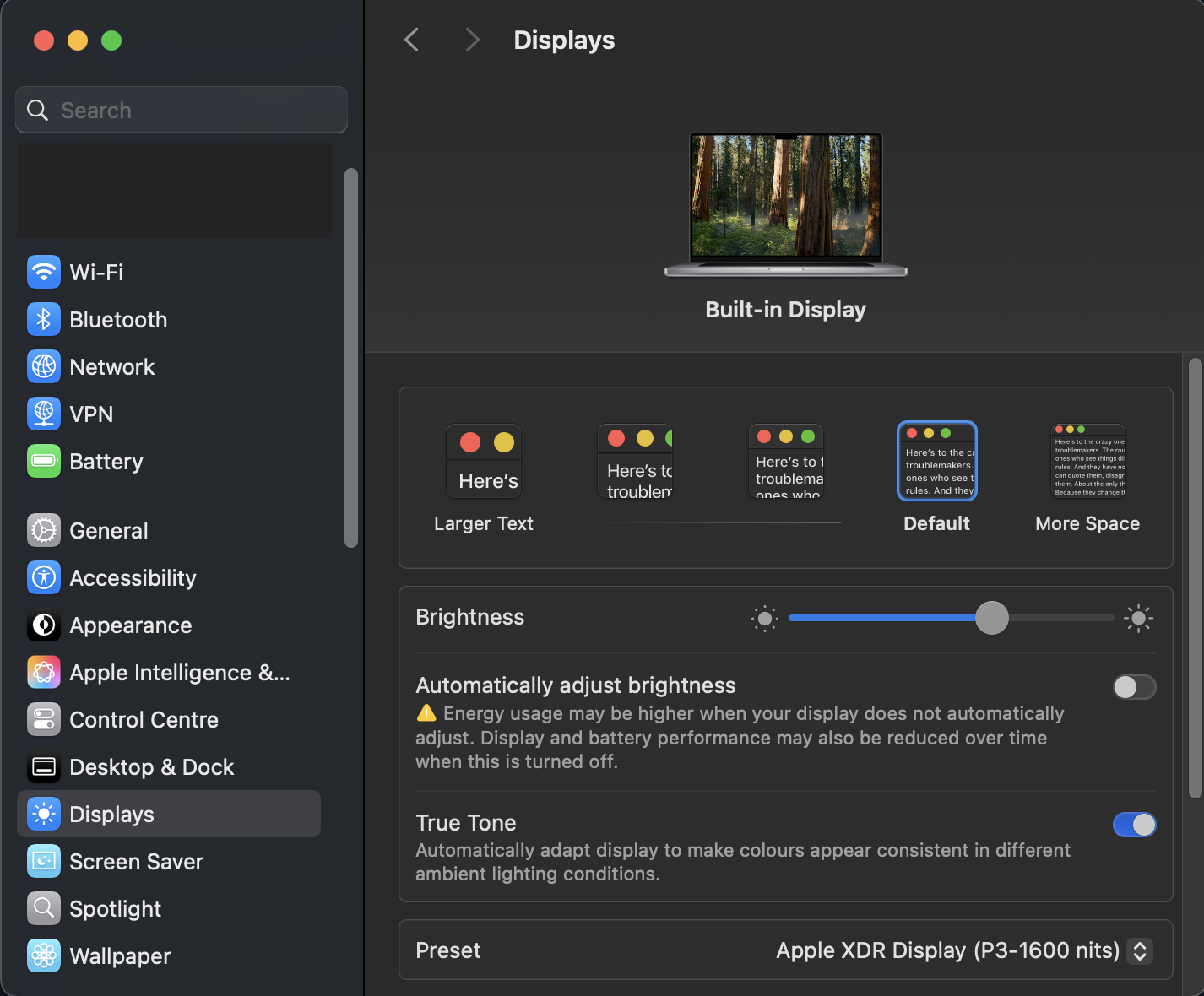
2. When you hover over the preview, you can see the resolution. If you right-click and open the menu, you can click "Show list." This is what we need.
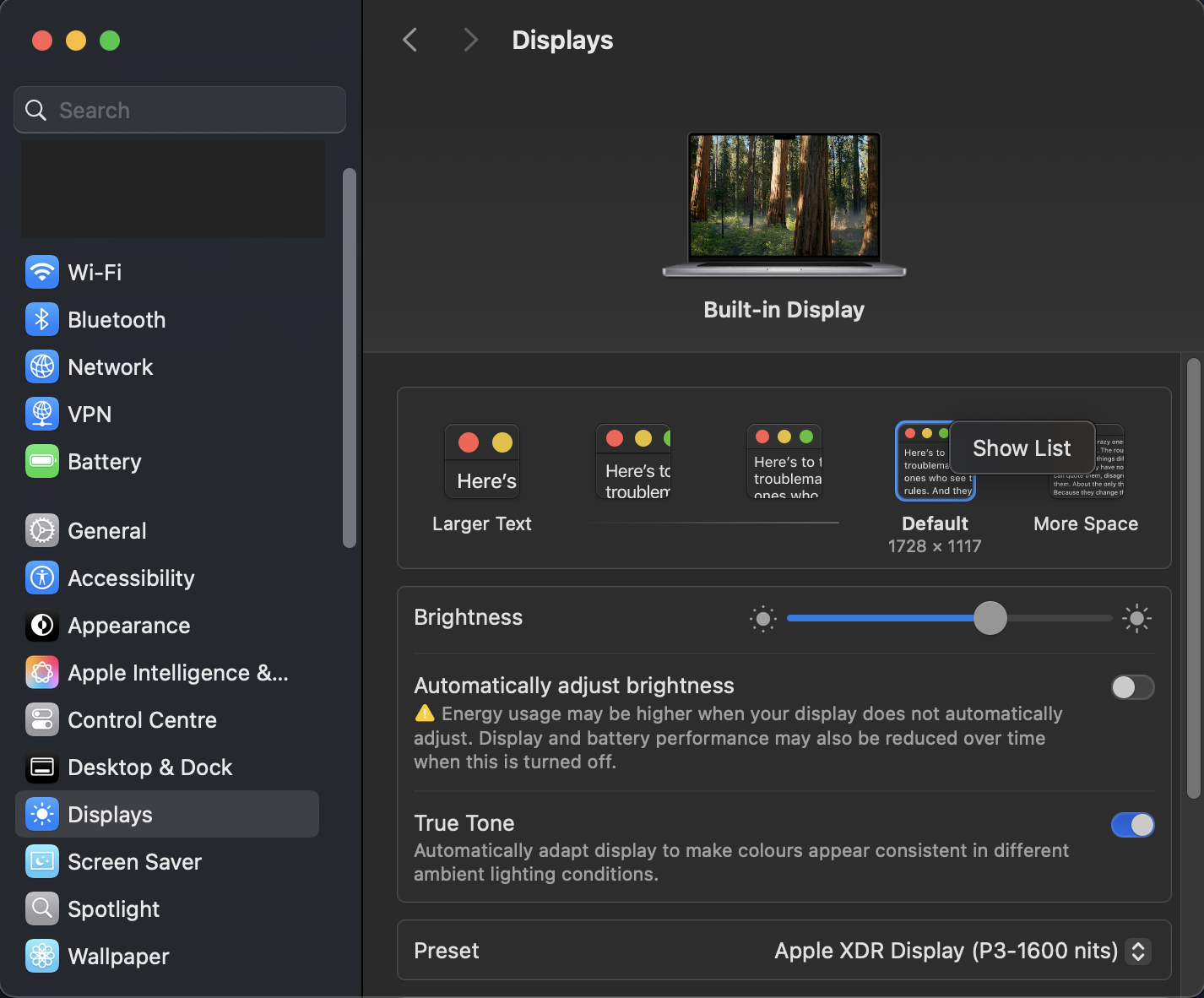
Then you will see smth like this
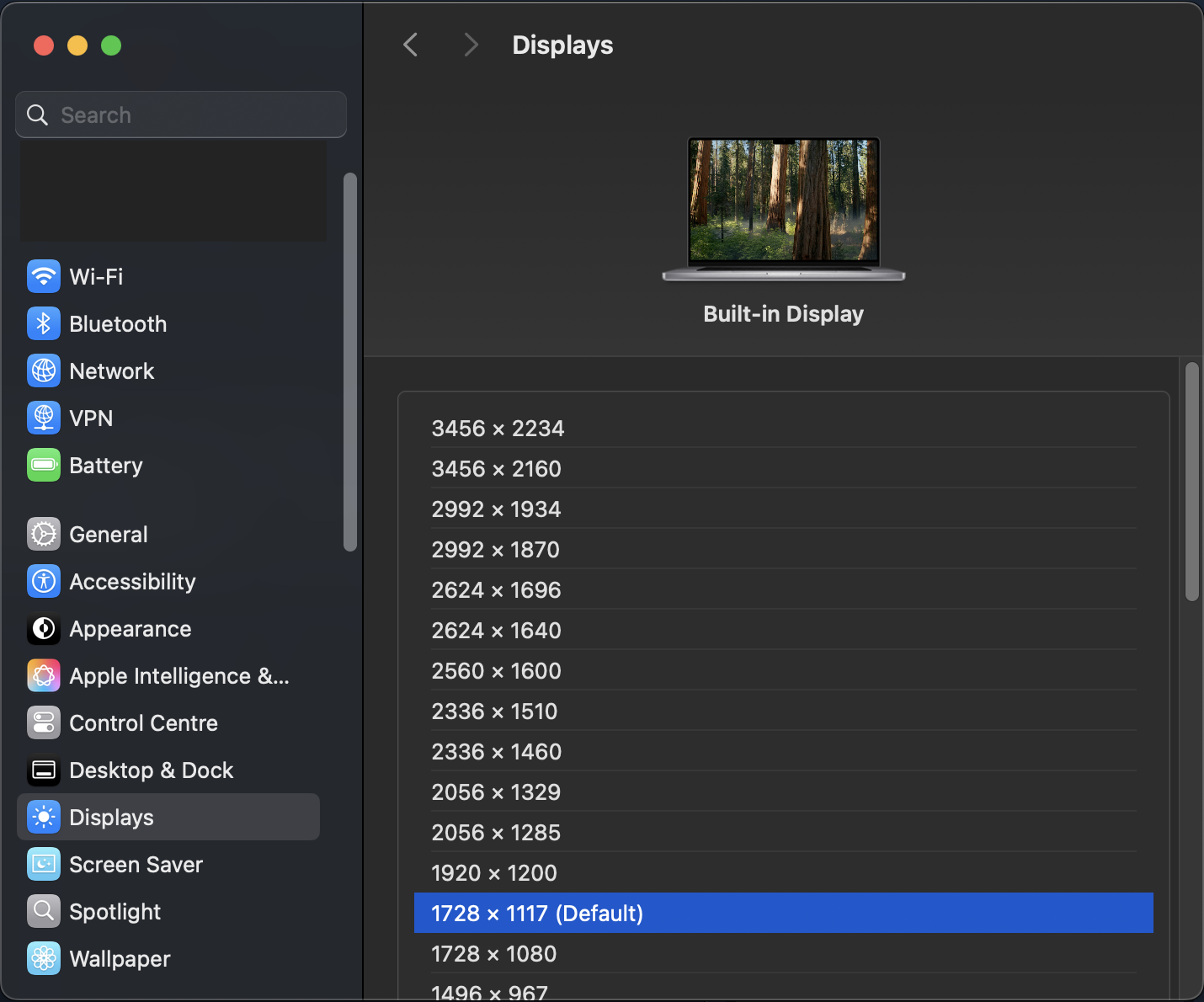
3. Check your real resolution. You can use online tools (just google "check resolution online" or something similar). I use this one in example https://testufo.com/resolution which is currently 1st in my google search results.
What do we see here? Hmm, the settings say 1728x1117, but on the website we see 3456x2234... That matches the top resolution listed in our settings (previous image)!
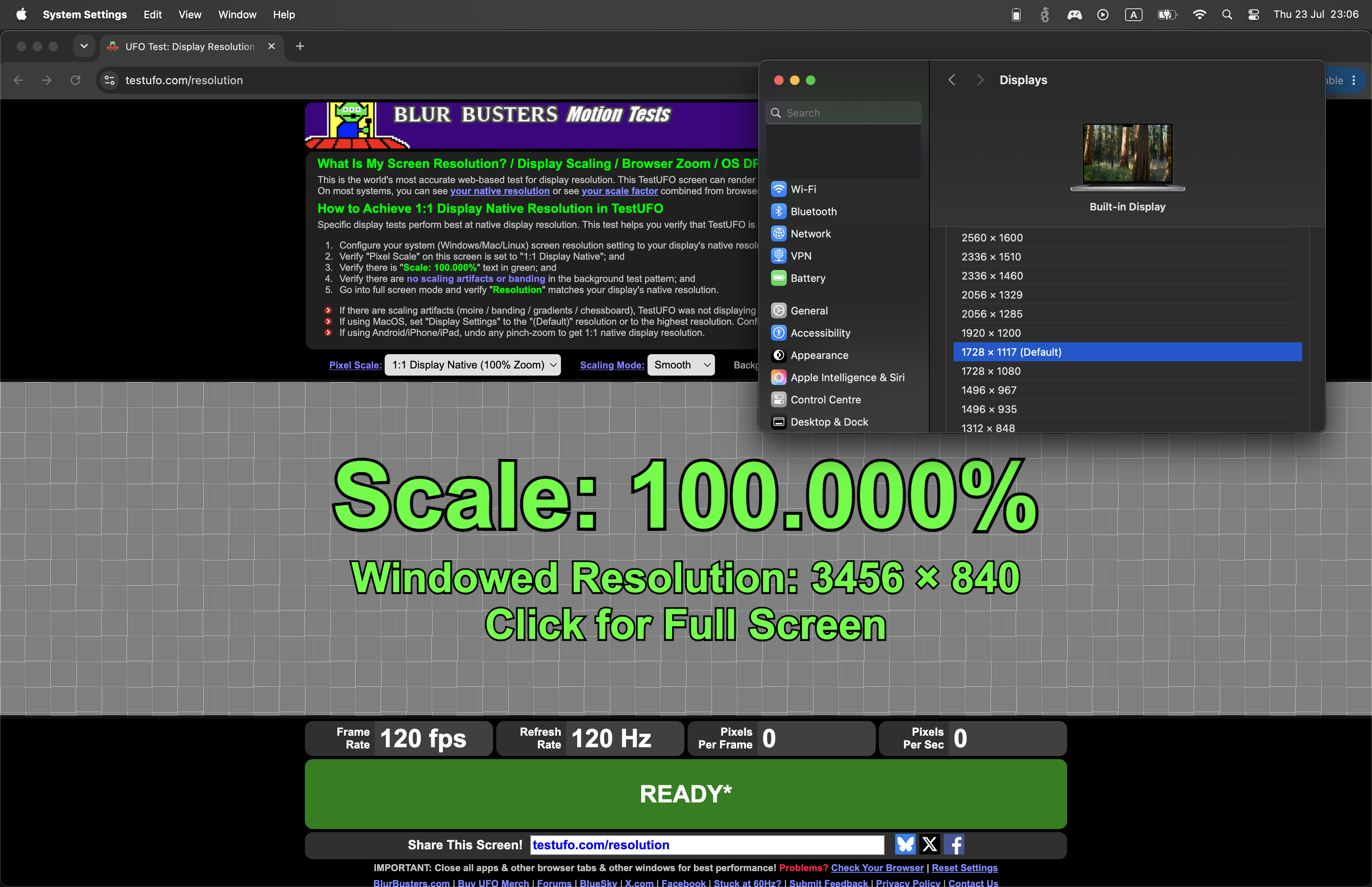
This is called system scaling. Since Retina displays are high-definition displays, to ensure that buttons and fonts don't appear blurry while using a Mac, the system renders the image at high resolution, even when you're unaware of it and are lowering the resolution.
But what's going on with Rust? That's our question. The system HUD we enabled at the beginning will help us.
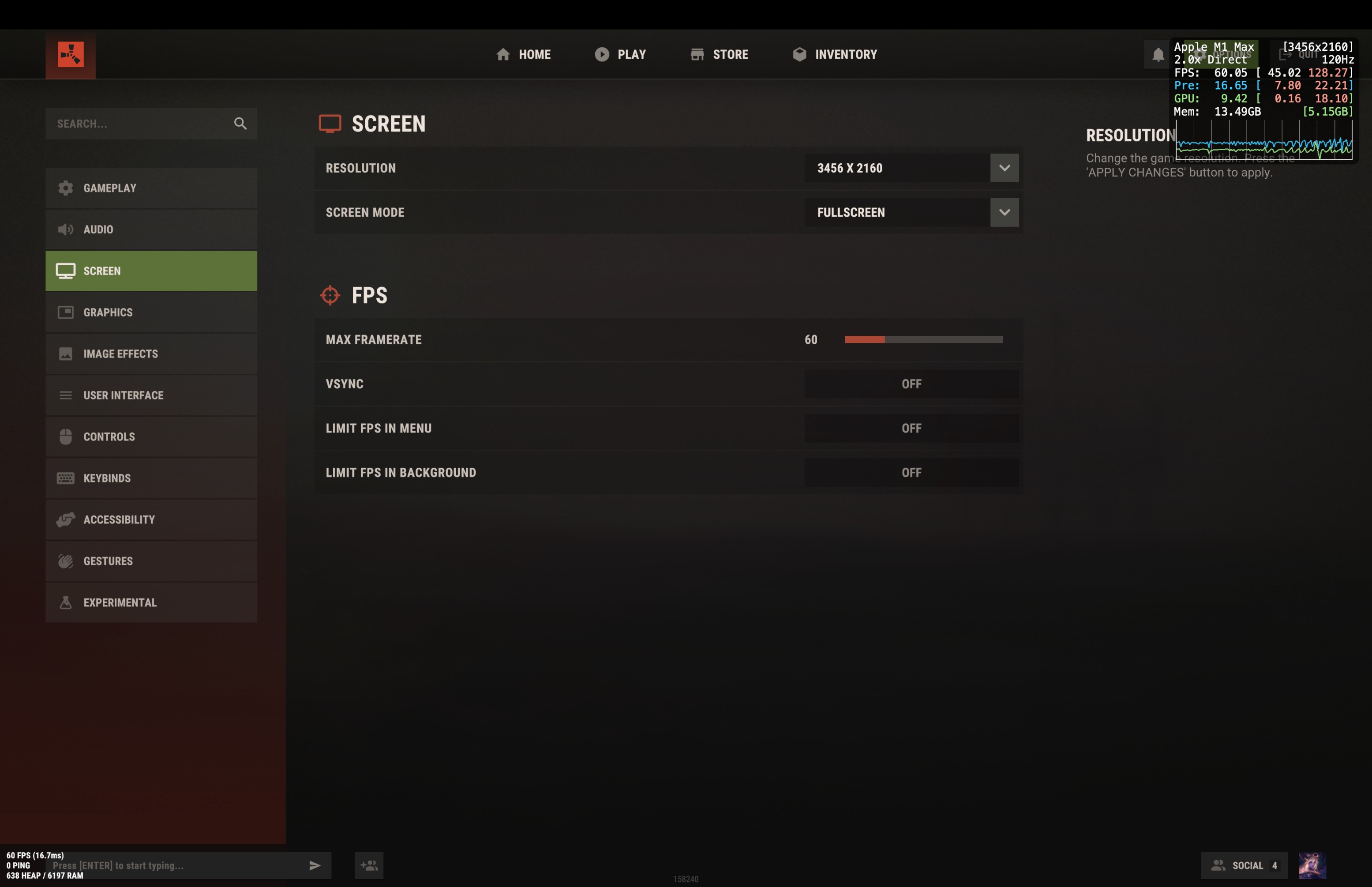
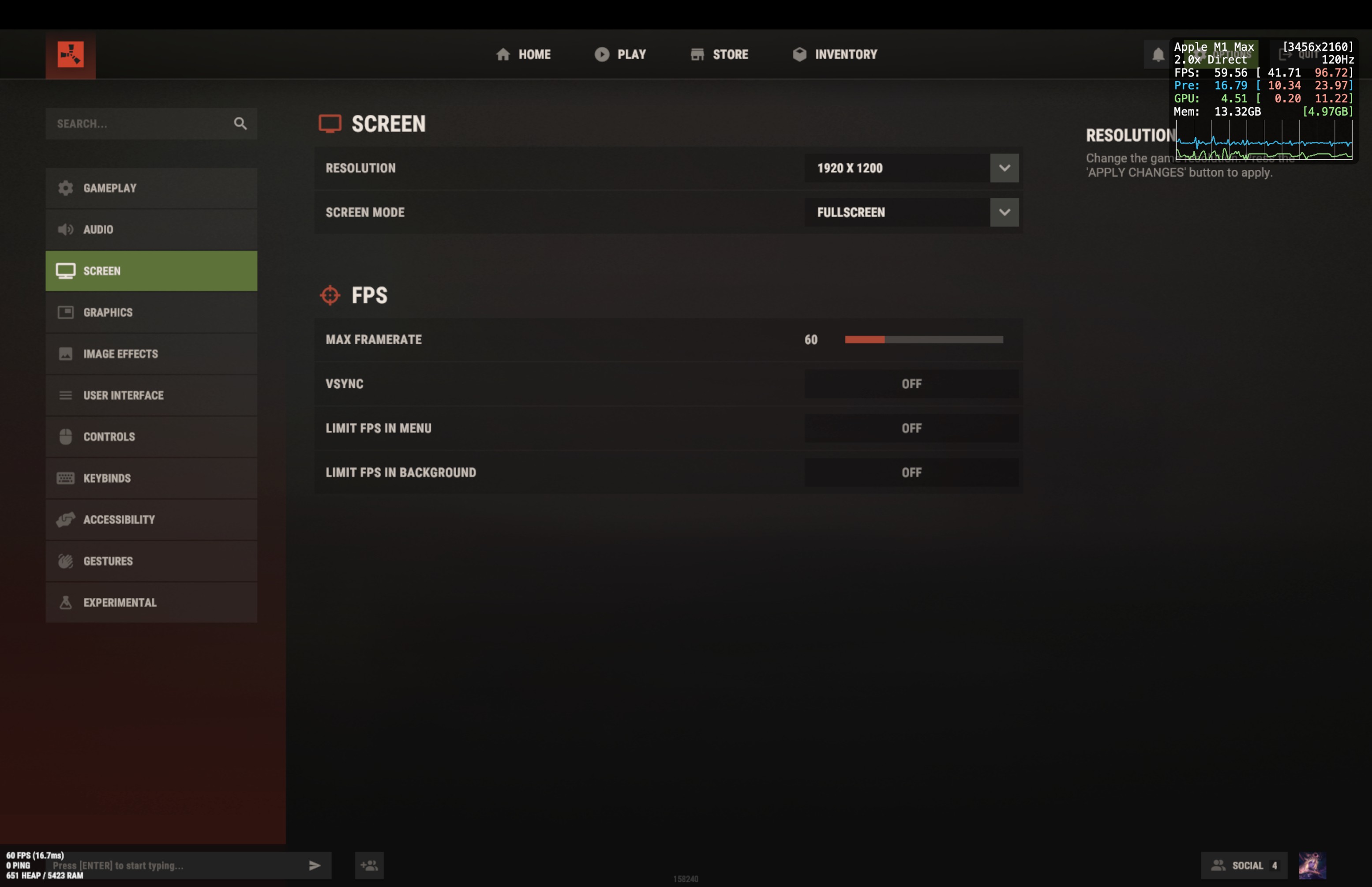
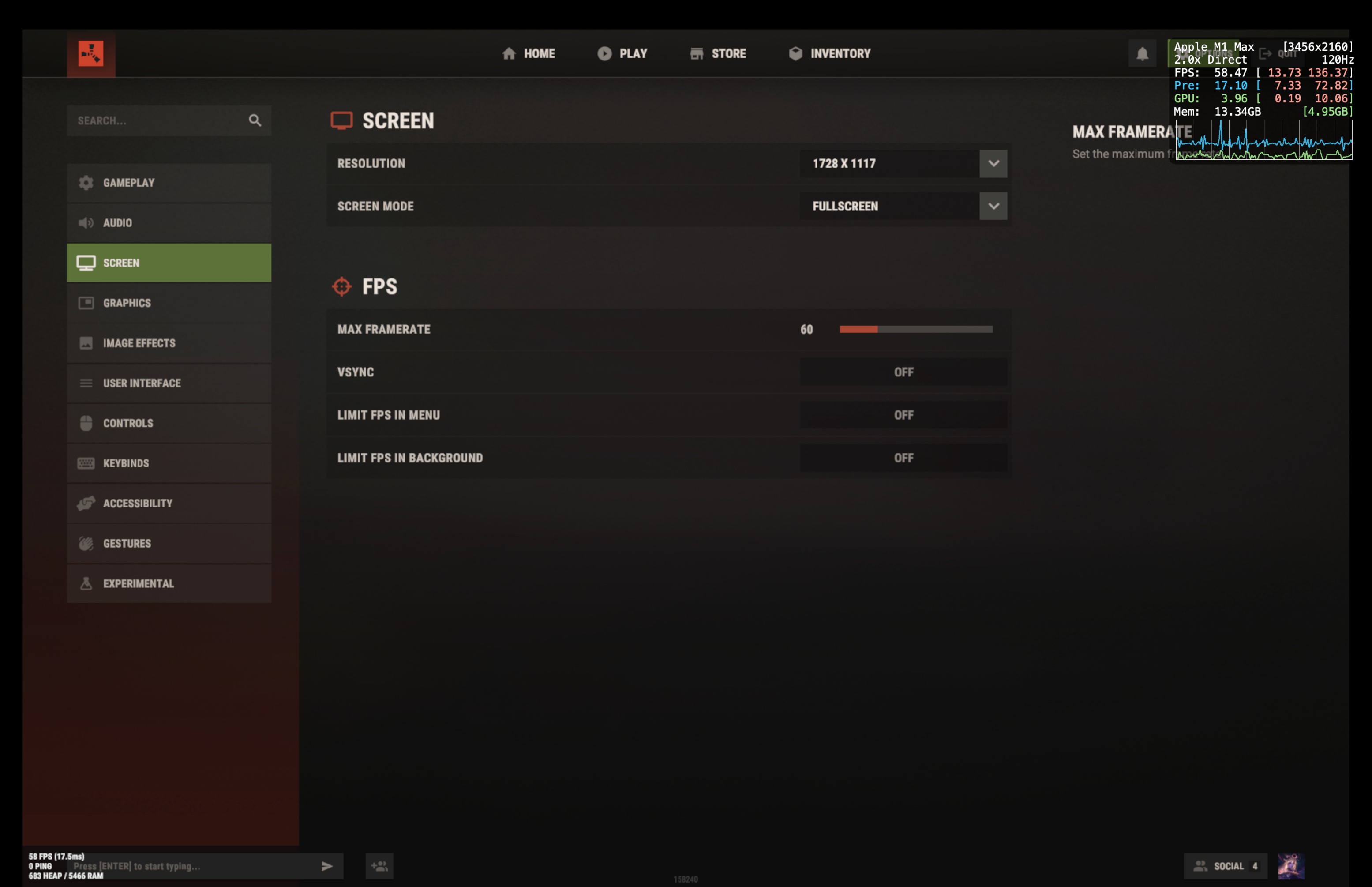
As you can see, we always use the fullscreen mode, but the HUD still displays the native highest resolution.
This results in your game being rendered on a 3456x2160 display, with the original 1920p stretched to 3456p, which is also somewhat expensive.
In my case, I couldn't find a way to disable HiDPI other than through BetterDisplay. It offers a trial period with full functionality, but we really only need one switch.
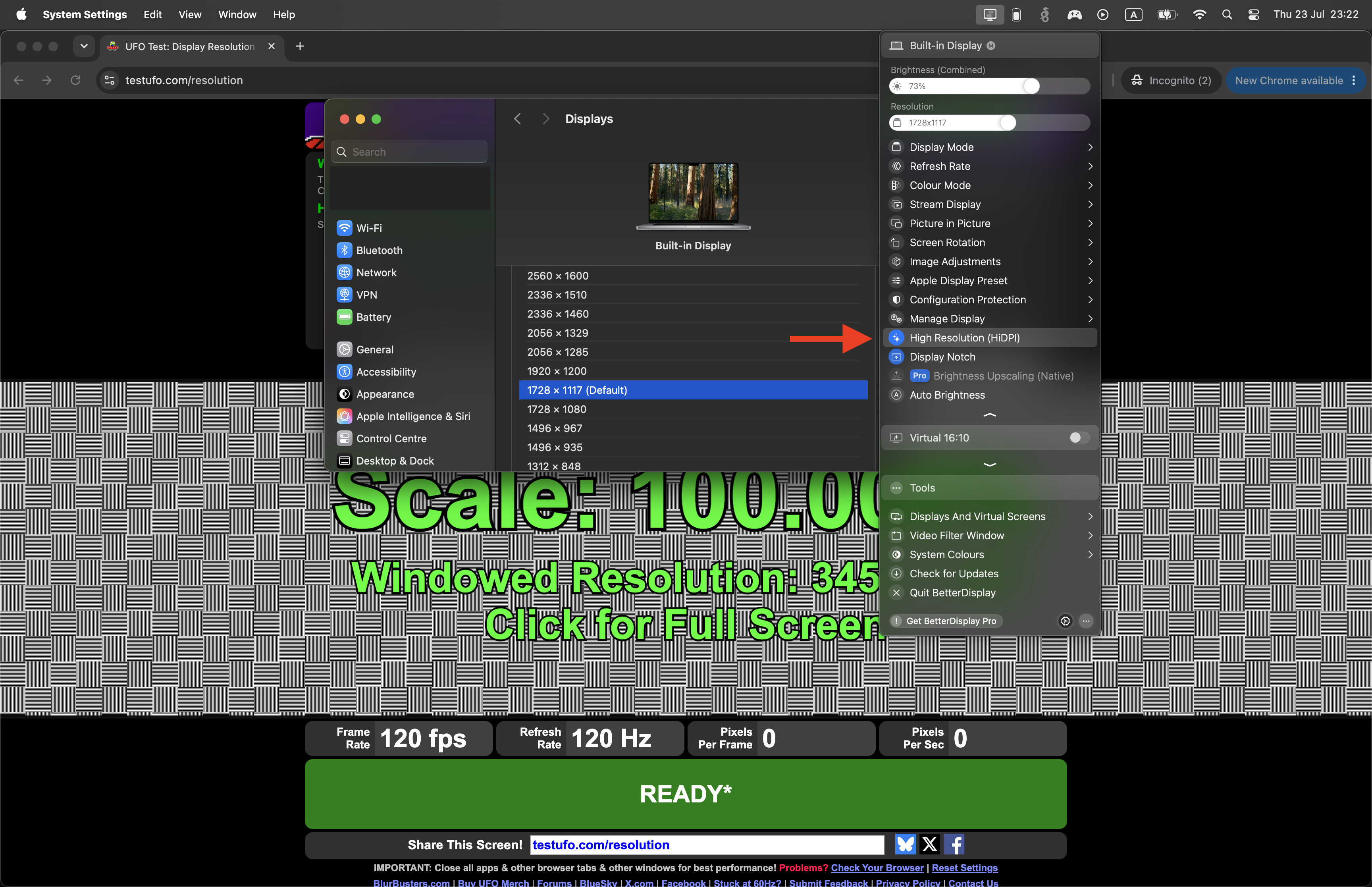
After disabling, your interface will jump a bit and everything will switch to the native low resolution. Be prepared for the image to become blurrier.
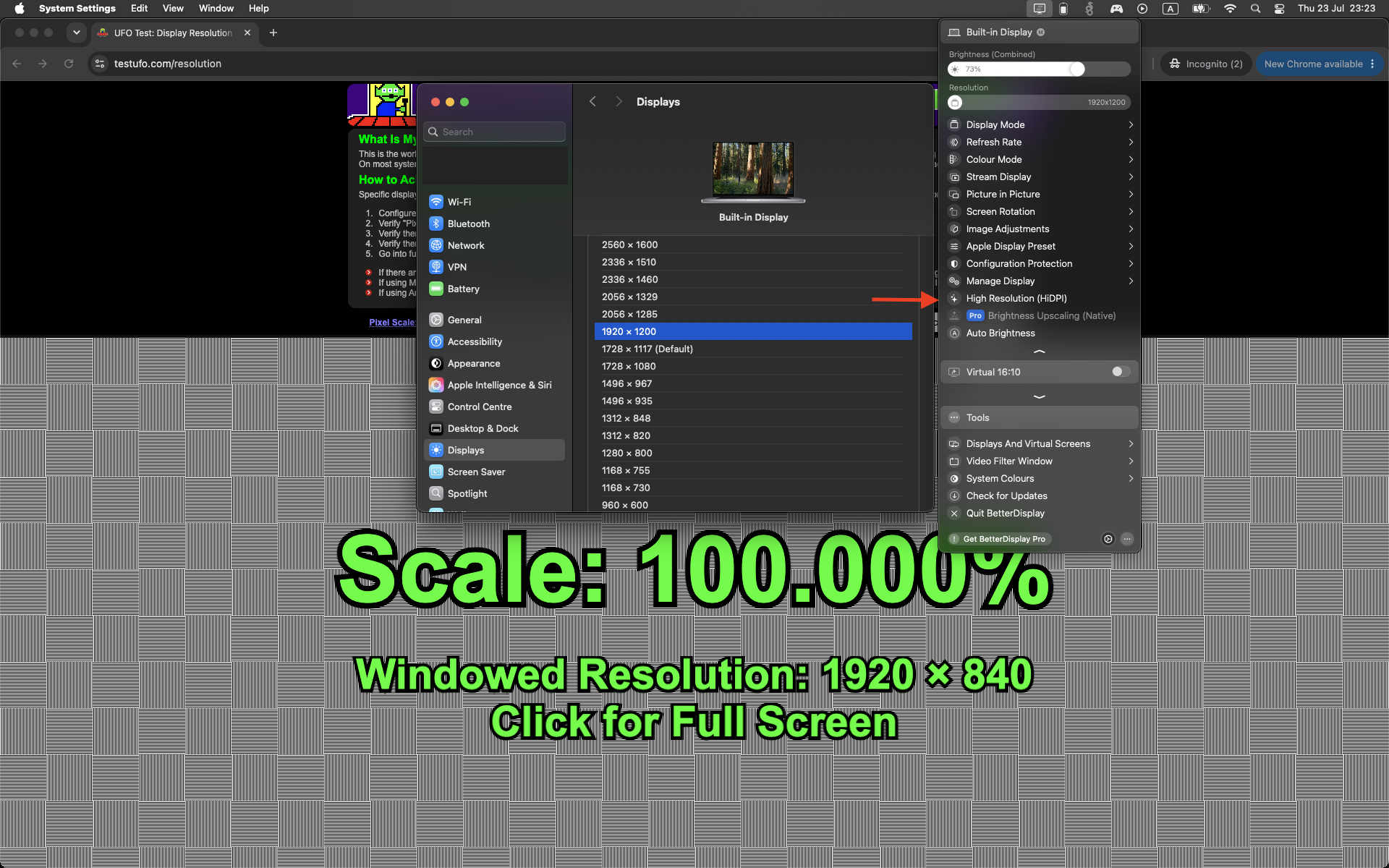
As you can see, the website now displays the actual resolution. Furthermore, if you didn't close the rast window, the HUD will roughly double in size.
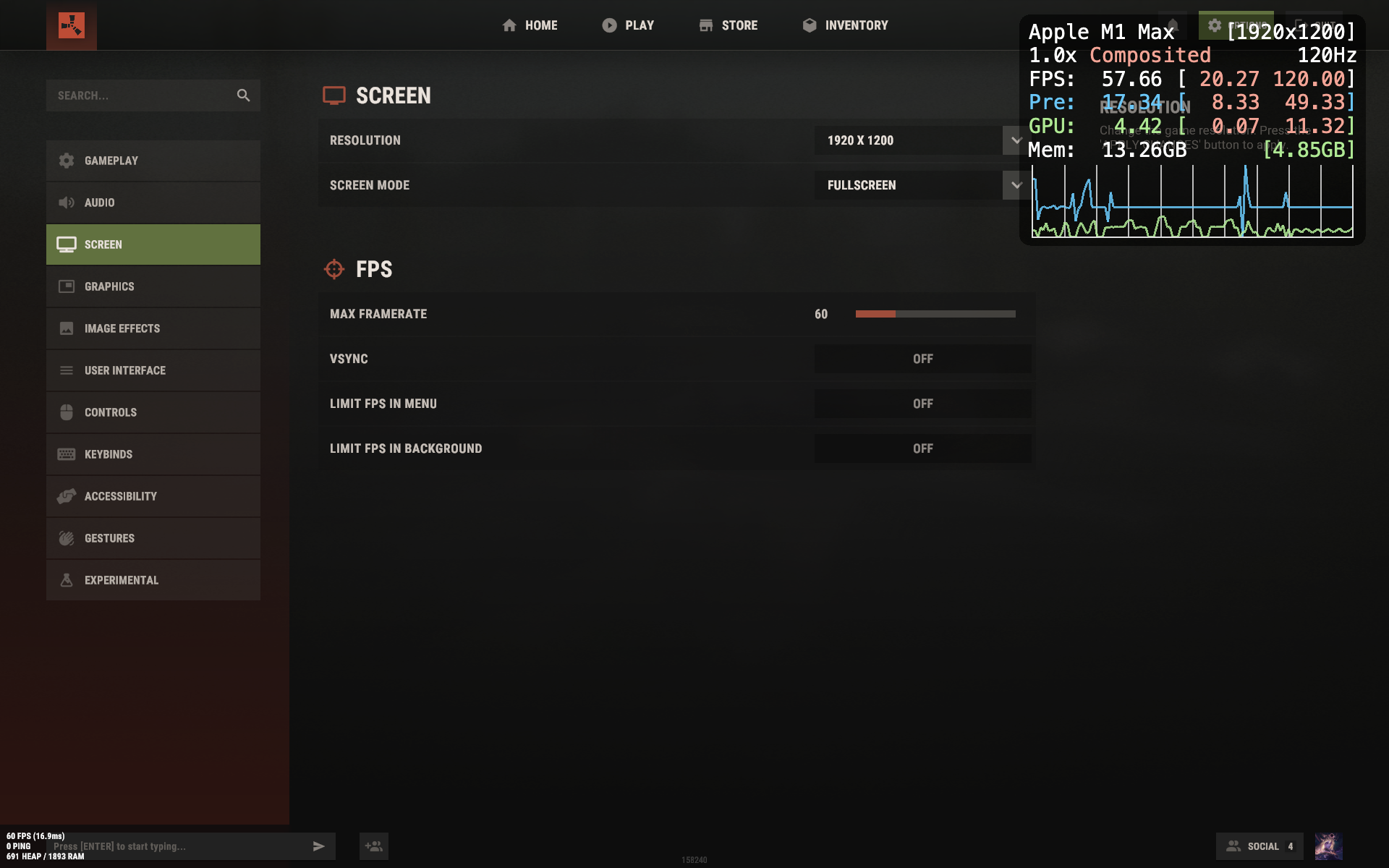
Now the hud resolution matches the rust resolution. 1920x1200 both
Congratulations, we have solved the first problem.
Better Display also lets you change the display's brightness and contrast. Unfortunately, my trial period ended, but you can play around with it to see at night as well as you can on Windows.
Or you can try to create custom preset in displays settings and set white point custom settings x: 0,3000 y: 0,3290 for the begining.
In short, even when you set the resolution in the system settings, you're probably only changing the scaling.
Here's how to check it.
1. Open displays settings
2. When you hover over the preview, you can see the resolution. If you right-click and open the menu, you can click "Show list." This is what we need.
Then you will see smth like this
3. Check your real resolution. You can use online tools (just google "check resolution online" or something similar). I use this one in example https://testufo.com/resolution which is currently 1st in my google search results.
What do we see here? Hmm, the settings say 1728x1117, but on the website we see 3456x2234... That matches the top resolution listed in our settings (previous image)!
This is called system scaling. Since Retina displays are high-definition displays, to ensure that buttons and fonts don't appear blurry while using a Mac, the system renders the image at high resolution, even when you're unaware of it and are lowering the resolution.
But what's going on with Rust? That's our question. The system HUD we enabled at the beginning will help us.
3456x2160
1920x1200
1728x1117
As you can see, we always use the fullscreen mode, but the HUD still displays the native highest resolution.
This results in your game being rendered on a 3456x2160 display, with the original 1920p stretched to 3456p, which is also somewhat expensive.
In my case, I couldn't find a way to disable HiDPI other than through BetterDisplay. It offers a trial period with full functionality, but we really only need one switch.
After disabling, your interface will jump a bit and everything will switch to the native low resolution. Be prepared for the image to become blurrier.
As you can see, the website now displays the actual resolution. Furthermore, if you didn't close the rast window, the HUD will roughly double in size.
Now the hud resolution matches the rust resolution. 1920x1200 both
Congratulations, we have solved the first problem.
Better Display also lets you change the display's brightness and contrast. Unfortunately, my trial period ended, but you can play around with it to see at night as well as you can on Windows.
Or you can try to create custom preset in displays settings and set white point custom settings x: 0,3000 y: 0,3290 for the begining.
Unity shaders
This is exactly why my friend and I were having problems on Mac.
Rust is actually quite buggy on Mac. Sometimes you can even see through the ground or textures.
I noticed that after each game update, the lags temporarily disappear.
By "lags", I mean FPS drops of 2-3 times, even though the Mac hasn't heated up yet and the servers aren't full of buildings and people.
I looked at the game error logs in the Steam folder and somehow came to the conclusion that the problem might be in the compilation of shaders.
You can use this command to open the folder in Finder where shaders are likely stored (on Macs with Silicone architecture)
(updated 02.10.2026)
If there are folders like
then you've found them. You can either clean them manually or use the command below in the terminal.
I think that part will help you the most.
Before deleting, make sure the folder exists, as I'm not sure if this will change in future versions.
Rust is actually quite buggy on Mac. Sometimes you can even see through the ground or textures.
I noticed that after each game update, the lags temporarily disappear.
By "lags", I mean FPS drops of 2-3 times, even though the Mac hasn't heated up yet and the servers aren't full of buildings and people.
I looked at the game error logs in the Steam folder and somehow came to the conclusion that the problem might be in the compilation of shaders.
You can use this command to open the folder in Finder where shaders are likely stored (on Macs with Silicone architecture)
open $TMPDIR/C/com.Facepunch-Studios-LTD.Rust/(updated 02.10.2026)
cd $(getconf DARWIN_USER_CACHE_DIR) && open $(ls -d *unity* *Facepunch* *rust* *Rust* 2>/dev/null | head -n 1)If there are folders like
- com.apple.gpuarchiver
- com.apple.metal
- com.apple.metalfe
then you've found them. You can either clean them manually or use the command below in the terminal.
rm -rf $TMPDIR/C/com.Facepunch-Studios-LTD.Rust/*I think that part will help you the most.
Before deleting, make sure the folder exists, as I'm not sure if this will change in future versions.
Useful settings and commands
gc.buffer
Check in the settings or through the console. You can use this table below
| RAM | gc.buffer size |
|---|---|
| 8 | 256 / 512 |
| 12 | 1024 |
| 16 | 2048 |
| 32 | 4096 |
Reminder: use "gc.buffer" to get ur current value or "gc.buffer 2048" to set
graphics.maxqueuedframes
You can try changing the value between 0 and 3. It affects how much load your processor is under. In my case, 1 worked (was 3 by default).
Reminder: and again - use "graphics.maxqueuedframes" to get ur current value
or "graphics.maxqueuedframes 1" to set
In-game commands you can use in console or bind
pool.clear_prefabs
pool.clear_memory
pool.clear_assets
gc.collect
I recommend to use something like this to bind these commands
bind l "pool.clear_prefabs; pool.clear_memory; pool.clear_assets; gc.collect"All of them, in one way or another, either clear problematic elements in the game that could be causing freezes, or clear the buffer. However, don't expect texture or display issues to be fixed. Such problems usually require a full game restart.
Shaders cleanup example
In this screenshot you can see how my fps dropped sharply, and the pre (the time of each frame) jumped.
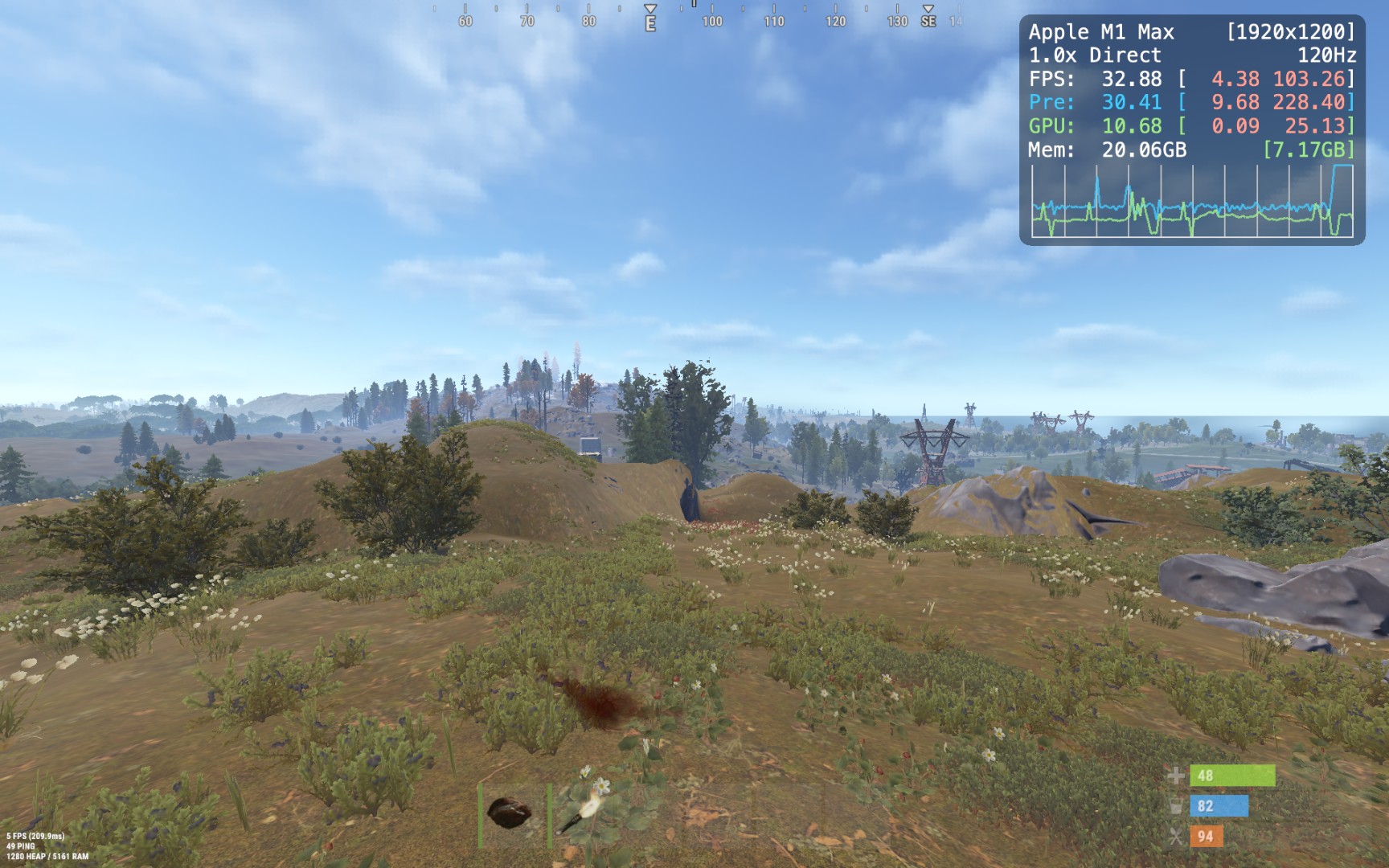
First I exit rust.
Then I send all my shaders to the trash with this command
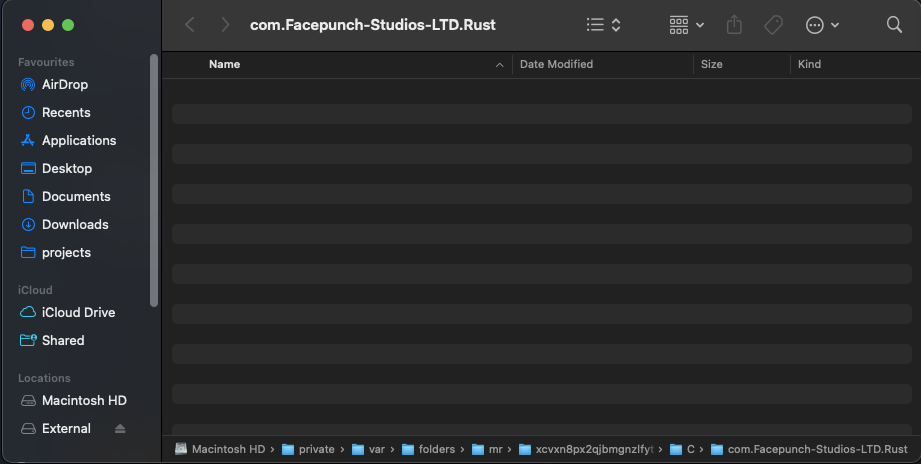
As you can see, this folder is now empty
After this, startup should take a little longer than usual. Be prepared for this.
In my case, I consistently clean these compiled shaders every few launches to avoid FPS drops.
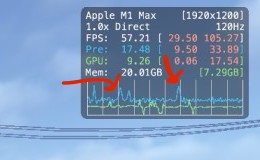
After that, I ran for several dozen minutes without such critical drops. This is what a typical graph should look like. These bursts can be camera turns, action with objects, or shots.
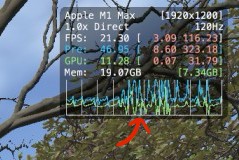
This is what the graph looks like when we hit the gc.collect bind several times in a row.
This is because it's garbage collection, and it takes up some resources. Simply put, the size of the gc.buffer affects how often this happens. Therefore, a larger gc.buffer is better if you have enough memory.
First I exit rust.
Then I send all my shaders to the trash with this command
rm -rf $TMPDIR/C/com.Facepunch-Studios-LTD.Rust/*As you can see, this folder is now empty
After this, startup should take a little longer than usual. Be prepared for this.
In my case, I consistently clean these compiled shaders every few launches to avoid FPS drops.
After that, I ran for several dozen minutes without such critical drops. This is what a typical graph should look like. These bursts can be camera turns, action with objects, or shots.
This is what the graph looks like when we hit the gc.collect bind several times in a row.
This is because it's garbage collection, and it takes up some resources. Simply put, the size of the gc.buffer affects how often this happens. Therefore, a larger gc.buffer is better if you have enough memory.
Conclusion
And yes, try to close all unnecessary programs.
Especially if you use telegram, as it can sometimes significantly impact your system's performance in the background.
Also, if you use websites to calculate raids or google how to loot monuments, I recommend using safari with a minimum of open tabs, rather than chrome, as this will save you quite a bit of memory.
Good raids to all!
Especially if you use telegram, as it can sometimes significantly impact your system's performance in the background.
Also, if you use websites to calculate raids or google how to loot monuments, I recommend using safari with a minimum of open tabs, rather than chrome, as this will save you quite a bit of memory.
Good raids to all!
Комментарии 0
Войди через Discord, чтобы комментировать